Live votes, word clouds, ratings, audience questions and self-paced polls for people on site and in the stream – the audience joins with a code or QR, no app and no account needed.
Overview
Pinionate is a website for live audience interaction. As the host, you create a session with questions, the audience joins with a five-character code or QR code and answers in their phone's browser. Results grow live: bars fill up, words pop up in the word cloud, numbers count up.
Besides the live session, there is the poll session: you build a block of questions, start it and send out a link, code or QR. Each participant answers all the questions one after another at their own pace, with no live moderation at all. This mode also adds the free text question type. In the host panel, the guide “How it works – step by step” walks you through four steps: create questions, start the poll, send the link, view the results.
What sets it apart: you can bring the results into your stream as a transparent overlay. You add an address as a browser source in OBS, vMix or the ATEM streaming software and fade the running question and its result in and out, with countdown, quiz leaderboard and, if you like, in your brand colors.
You control it either in the host area with the tabs Live, Questions, Results, Brand, Stream and Subscription or, with Pro, from your phone via a remote control and with the press of a button from Stream Deck and Bitfocus Companion. After the event, there is a results report with key figures, a timeline and charts for each question.
Status: Pinionate is in development and not yet publicly available. This page describes what the app can do at its current stage of development. There is no launch date yet.
6question types: vote, rating 1 to 5, word cloud, free text (polls only), audience questions (Q&A) and quiz with points
2session types: live session with moderation or a poll at the participants' own pace
5characters are all it takes to join, or use a QR code, without an app and without an account
4overlay layouts: Card, Lower bar, Full screen and Ticker
3export formats for the results: CSV, Excel and PDF (Pro)
Who is it for?
Presenters and organizers who want to let the audience vote at company parties, club evenings, conferences or shows, without anyone having to install anything.
Streaming teams who want to show poll results as an overlay in the program picture, with a browser source in OBS, vMix or ATEM software.
Control room staff and video switcher operators who want to run the question and overlay with a Stream Deck or Companion button.
Teams, clubs and organizers who want to collect feedback without live moderation, for example customer surveys or feedback before and after an event, using a poll session with a link or QR.
Event agencies who want to show the overlay and participant page in the client's colors, with saved brands per client.
Organizers with one-off events, for whom an Event Pass (48 hours of Pro) fits better than a subscription.
Quick start
Create a sessionOn the start page, under “Host a session” you enter a title, choose between “Live session” and “Poll to send out”, tick the box for the data processing agreement (Art. 28 GDPR) and click “Create session”. You land in the host area.
Create questionsIn the “Questions” tab you choose the type, type the question and, for votes and quizzes, one answer per line. Alternatively, you import a list, one question per line.
Invite the audienceIn the “Stream” tab you see the five-character code, the join link and a QR code. The audience scans it or types in the code and needs neither an app nor an account.
Start the first questionIn the “Live” tab you click “Start first question”. The question appears on the phones right away, and the results build up live in the host area.
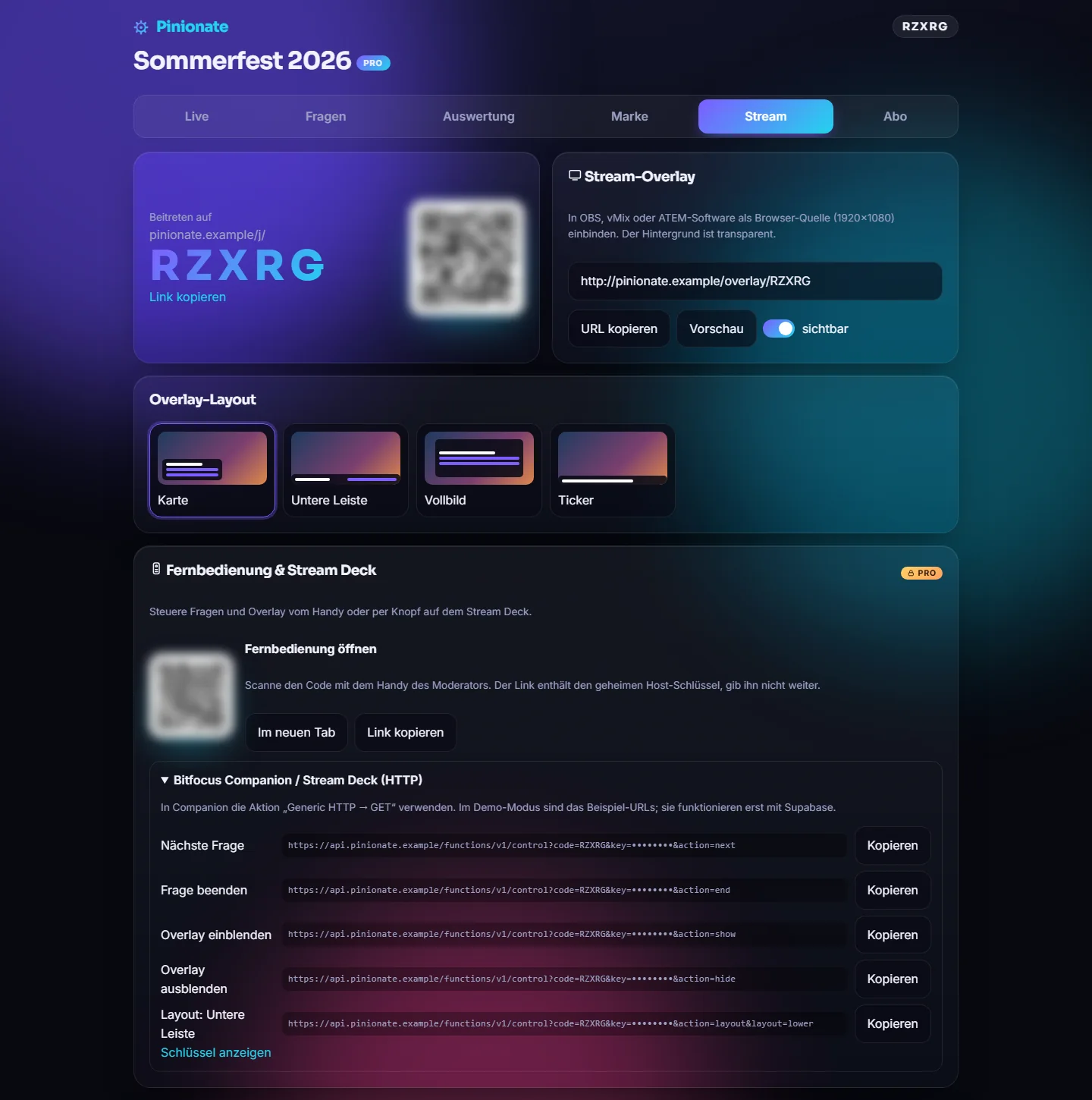
Bring the overlay into the stream (optional)In the “Stream” tab you copy the overlay URL and enter it in OBS, vMix or the ATEM software as a browser source at 1920×1080. The background is transparent. With the “visible” switch you fade it in and out.
End and review the results“End” closes the question and shows the result, “Next question” moves on. All answers stay saved and are ready in the “Results” tab.
Instead of live: send out a poll (alternative)If you choose “Poll to send out” when creating the session, the guide “How it works – step by step” in the host panel walks you through four steps with one main button each: create questions, start the poll, send the link, view the results. You prepare the questions (that works in Free too), you start the poll with Pro or an Event Pass and share the link, code or QR. Participants answer at their own pace, and you can follow each participant's progress live. Finally, you end the poll and review the results.
Question types and settings
Six question types cover the usual situations. The first three are available in all plans; audience questions, quiz and free text are Pro features.
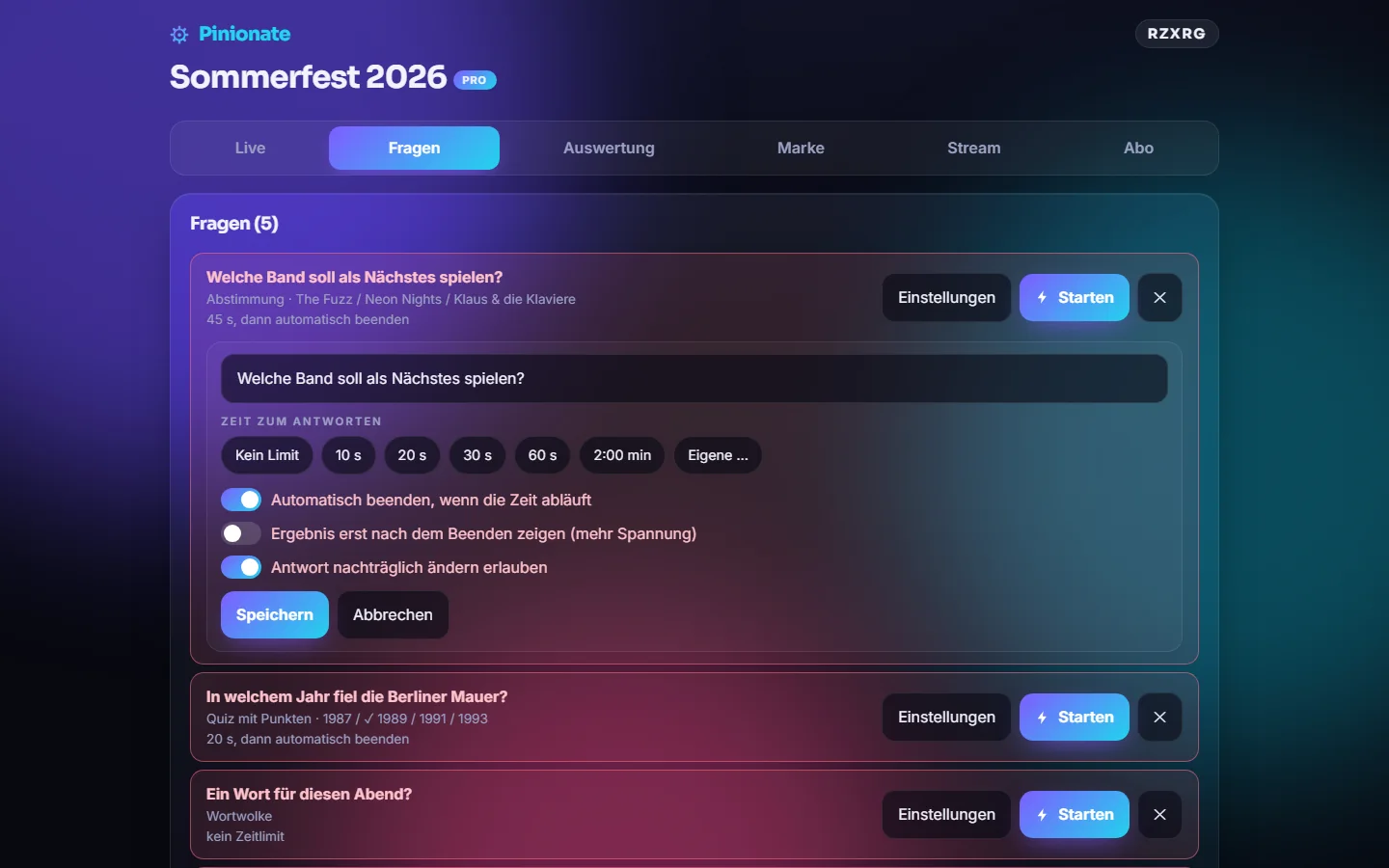
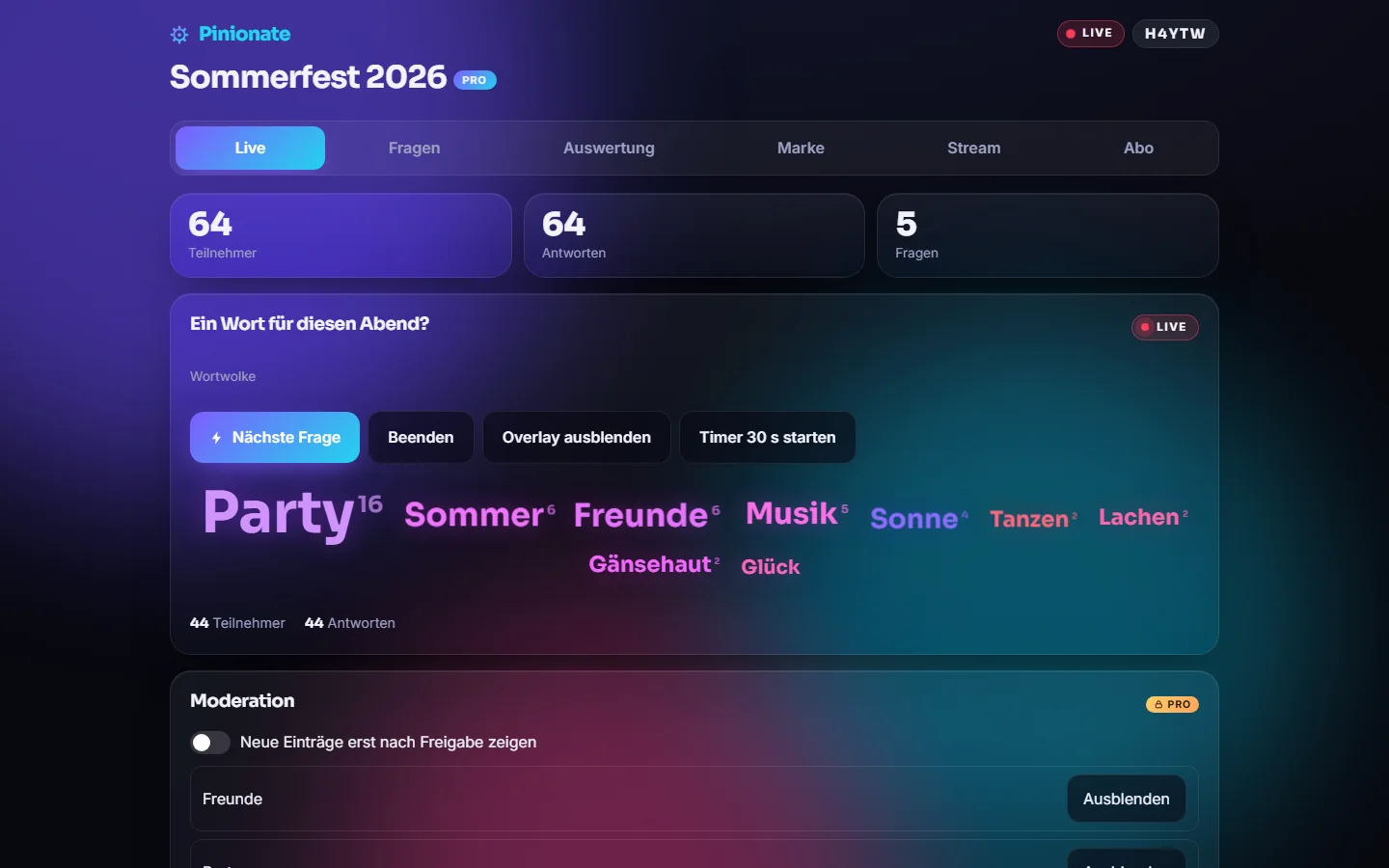
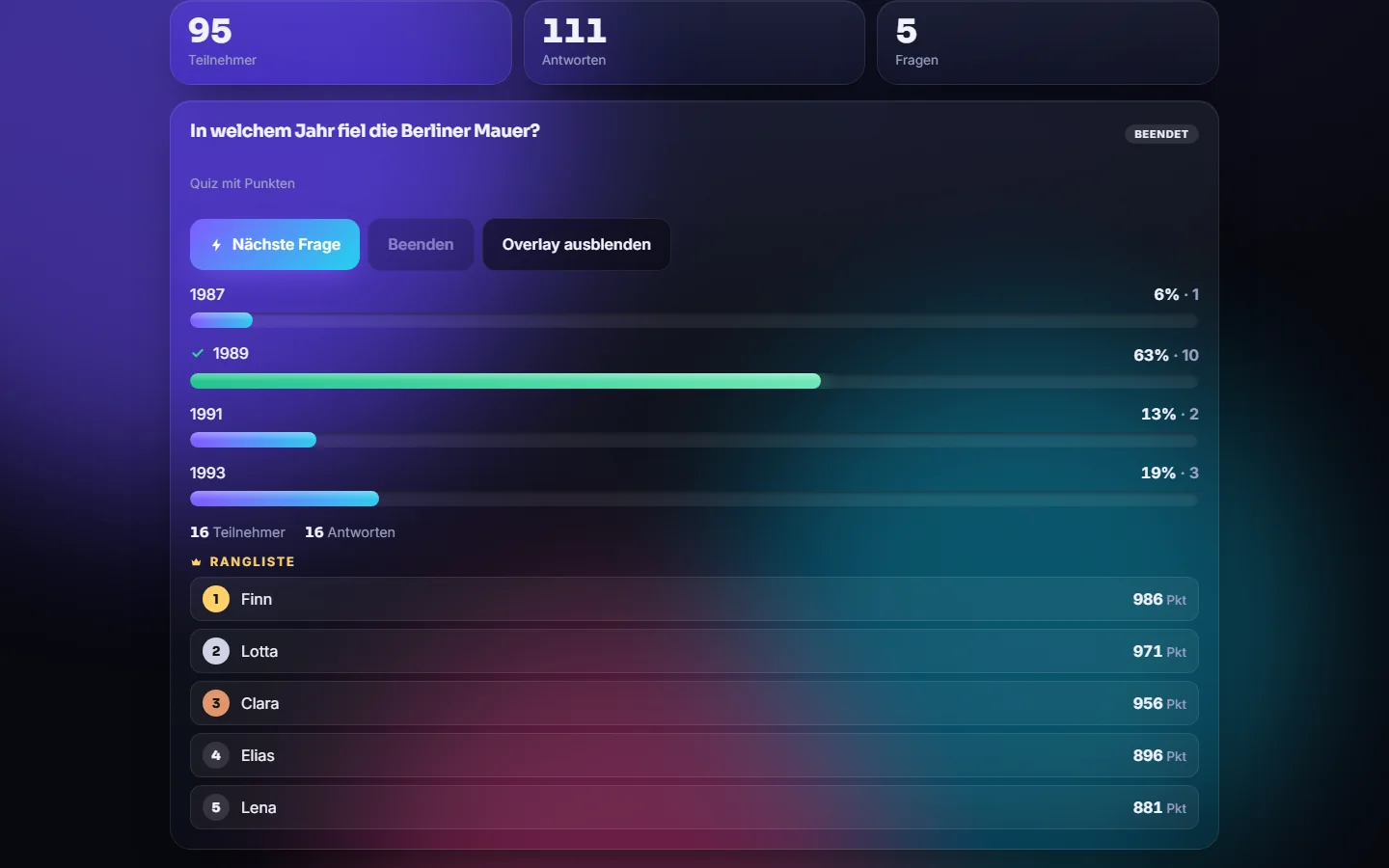
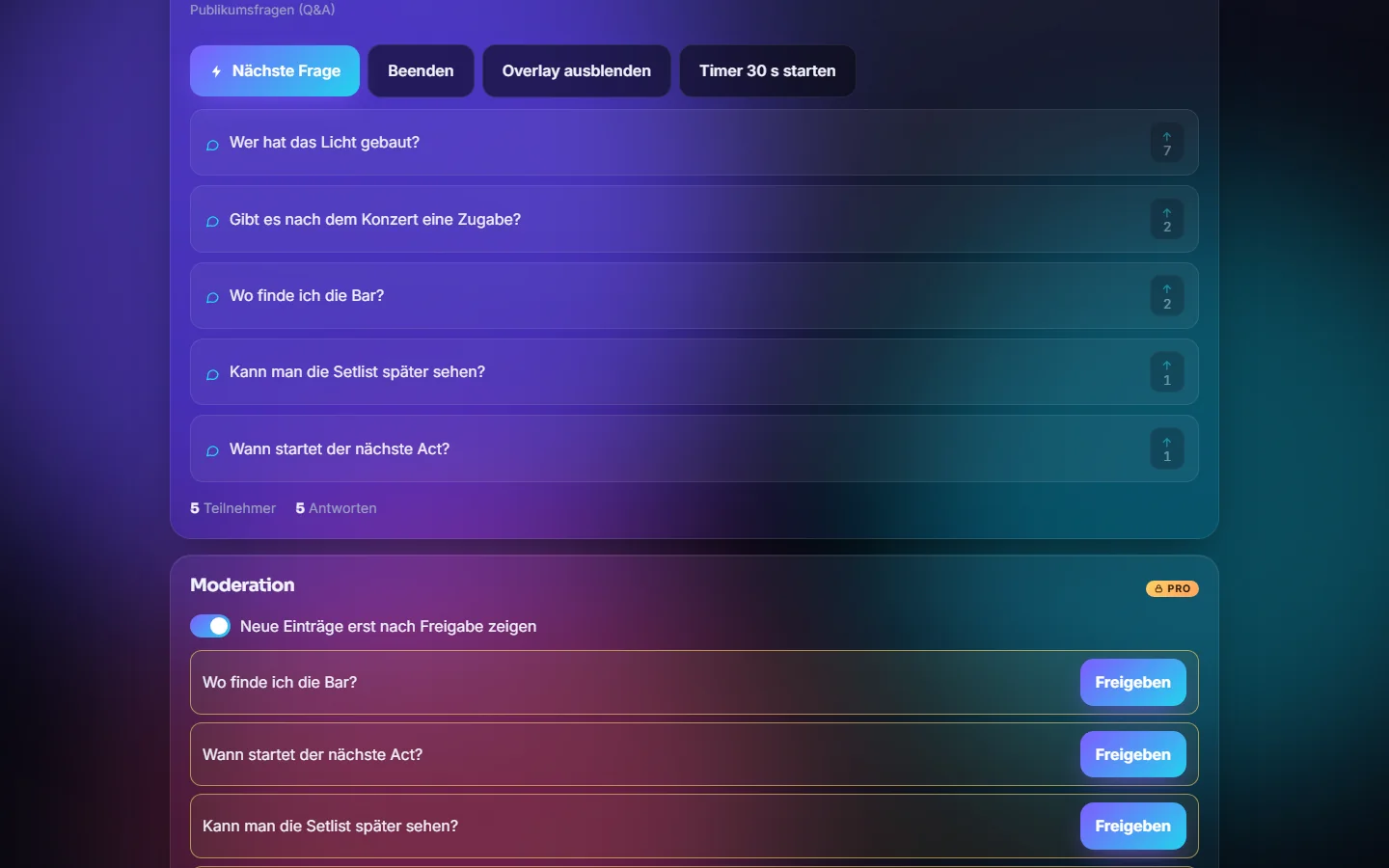
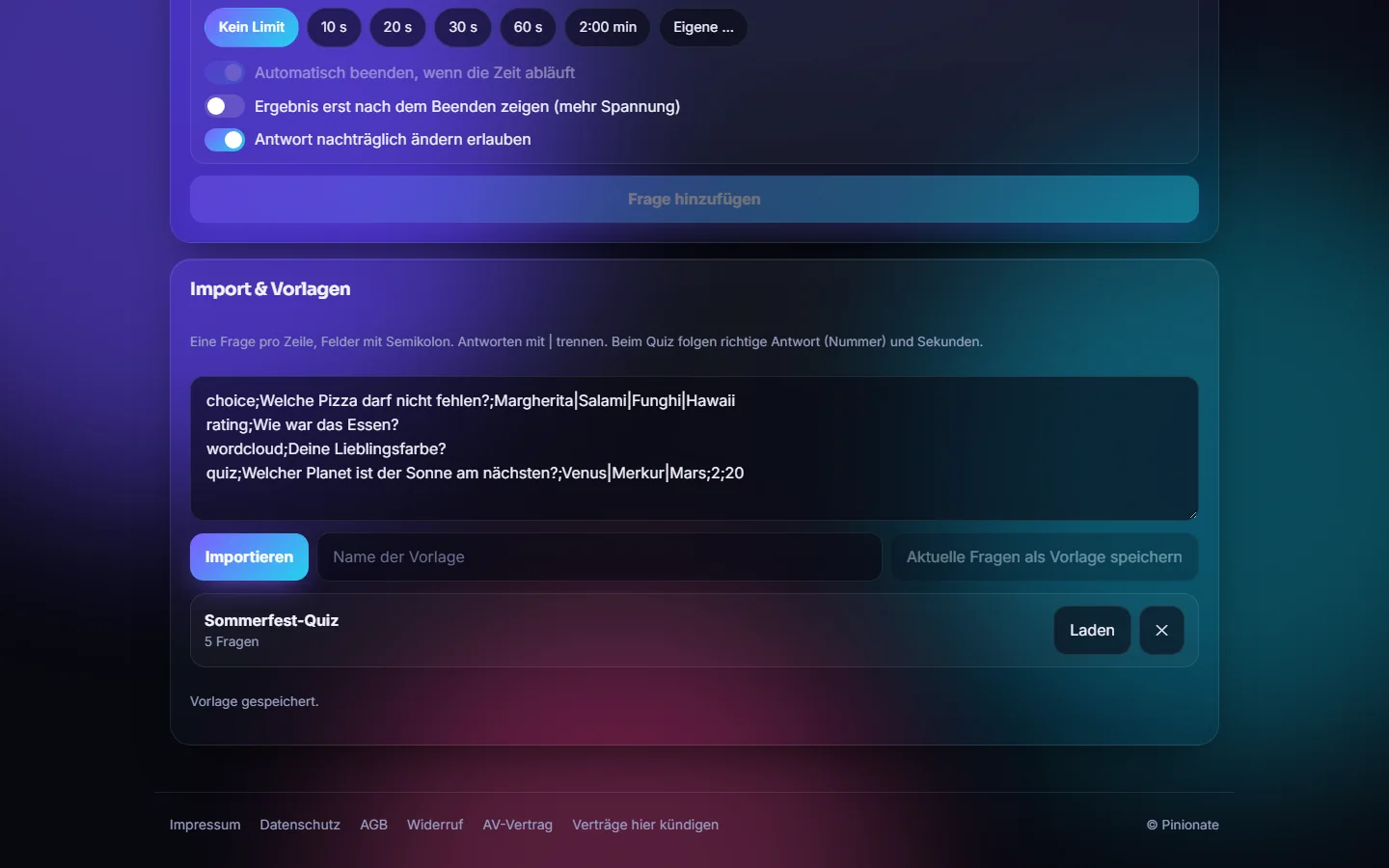
The question list with type and the settings per question: time limit, show result only after ending, change answer afterward.Word cloud: the more often a word is mentioned, the larger it appears.Quiz: correct answer marked in green, with the leaderboard and points below.Audience questions with upvotes; you approve each question before it is displayed.Import questions and save them as a template.
Vote, rating and word cloud
A vote has at least two answers, and the audience picks one. Ratings use stars from 1 to 5, and the result shows the average and median. In a word cloud, participants type short terms that build up live into a cloud.
In the “Questions” tab, choose the type.
Enter the question; for a vote, one answer per line.
Click “Add question”.
Tip: In a word cloud, each person has 3 entries by default, adjustable from 1 to 5.
Audience questions (Q&A, Pro)
The audience asks their own questions and can support the questions of others (upvotes). With moderation turned on, new entries only appear after you approve them.
Create a question of the type “Audience questions (Q&A)” and start it.
In the “Live” tab, under “Moderation”, turn on the switch “Show new entries only after approval”.
Control entries with “Approve” or “Hide”.
Tip: By default, 5 entries per person are allowed. Moderation also applies to word clouds.
Quiz with points (Pro)
You define a correct answer. After the question ends, participants find out whether they were right and see the leaderboard. A correct answer earns 1,000 points. With the option “Fast answers earn more points”, the value drops to as low as 500 points depending on the time used.
Choose the type “Quiz with points” and enter the answers.
Under “Correct answer”, set the right option.
Optionally set a time limit (default for a quiz: 20 seconds).
Tip: The leaderboard adds up all ended quiz questions.
Free text (polls only, Pro)
Participants write their own answer of up to 500 characters. One answer counts per person and question, and a new one replaces the old one. This question type only exists in poll sessions. You see the answers in the host area as text cards, up to 100 are displayed, and the rest is in the CSV file.
In a poll session, in the “Questions” tab, choose the type “Free text”.
Enter the question and add it.
After the poll starts, you read the answers in the results as text cards.
Tip: Free text answers are not moderated. You see what participants write exactly as it was entered.
Time limit and question settings
Each question can get a time limit from 10 seconds to 10 minutes or “No limit”. The time runs as a countdown on the phone and in the overlay. Further options: end the question automatically when time runs out, show the result only after ending, and allow changing answers afterward.
When creating, under “Settings”, choose the time limit or “Custom …” for your own value.
Set the switches for automatic ending and result visibility.
You change existing questions via “Settings” in the question list.
Tip: The most recently used settings are suggested for the next new question. In poll sessions, there are no time limits.
Import questions and save as a template
You create several questions in one go: one question per line, fields separated by semicolons, answers separated by a vertical bar. Current questions can be saved as a template and loaded again later.
In the “Questions” tab, scroll to the “Import & templates” section.
Paste lines in the format choice;Frage;Antwort A|Antwort B and click “Import”.
For a template, enter a name and click “Save current questions as template”.
Tip: Templates are currently stored in the browser, not in the account. They are not available on another device.
Polls at your own pace
Besides the live session, there is the poll session for feedback without live moderation. You choose the type when creating the session, between “Live session” and “Poll to send out”.
Build and start a poll
In the “In preparation” status, you build the questions from vote, rating, word cloud and free text. Quiz, audience questions and time limits are not available in polls. When you start, all questions are open at the same time, and the poll is then “Running”. Preparing works in Free, starting is reserved for Pro, and an Event Pass counts as well. Afterward you share the link, code or QR code. The guide “How it works – step by step” in the host panel walks you through these steps with one main button each: create questions, start the poll, send the link, view the results.
When creating the session, choose “Poll to send out”.
In the “Questions” tab, create the questions while the poll is “In preparation”.
Start the poll and distribute the link, code or QR.
Tip: After the start, the questions are locked. To change them, go to “Start over” in the “Poll” tab: this deletes all answers, resets the poll to “In preparation”, and the questions can be edited again.
Participants answer at their own pace
On the phone, one question appears per screen with a progress indicator. Participants move through the poll with “Back”, “Next” or “Skip”. At the end, they see a list of skipped questions and can answer them with “Catch up”. Answers are saved immediately and can be changed until the poll ends.
Tip: There is no live control. You don't have to start individual questions while the poll is running.
Poll panel for the host
In the host area, you see live how many participants have joined, how many answers there are and how many have finished the poll completely. You end the poll with a confirmation and can start it again later with “Restart poll”. With the switch “Show participants the results after the end” (“Poll” tab), you decide: off, and participants only see a thank-you message; on, and after the end they see everyone's results, without names.
In the host area, open the poll panel and follow the participation.
If needed, set the switch for showing results.
Click “End poll” and confirm the prompt.
Tip: Participants only see results when the poll has ended and you have turned on “Show participants the results after the end”.
Privacy in polls
In a poll, no participant sees the answers of others, neither in the app nor through the database interface. If you show participants the results after the end, the participant IDs appear pseudonymized.
The audience joins in
The participant page is an ordinary web page. There is nothing to install and no sign-up.
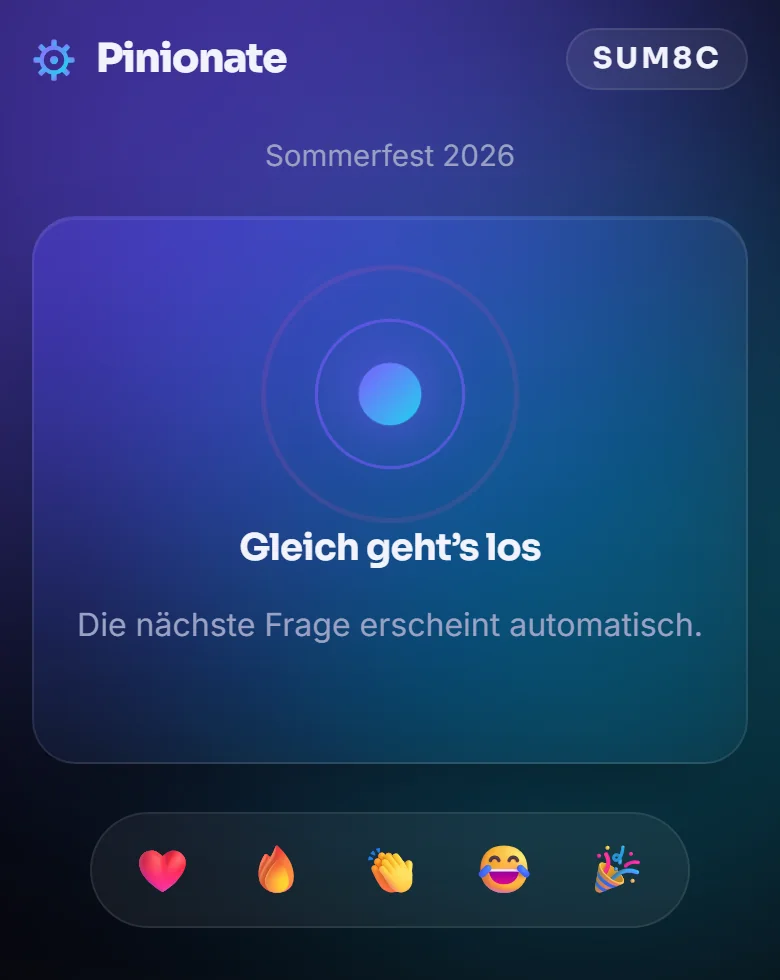
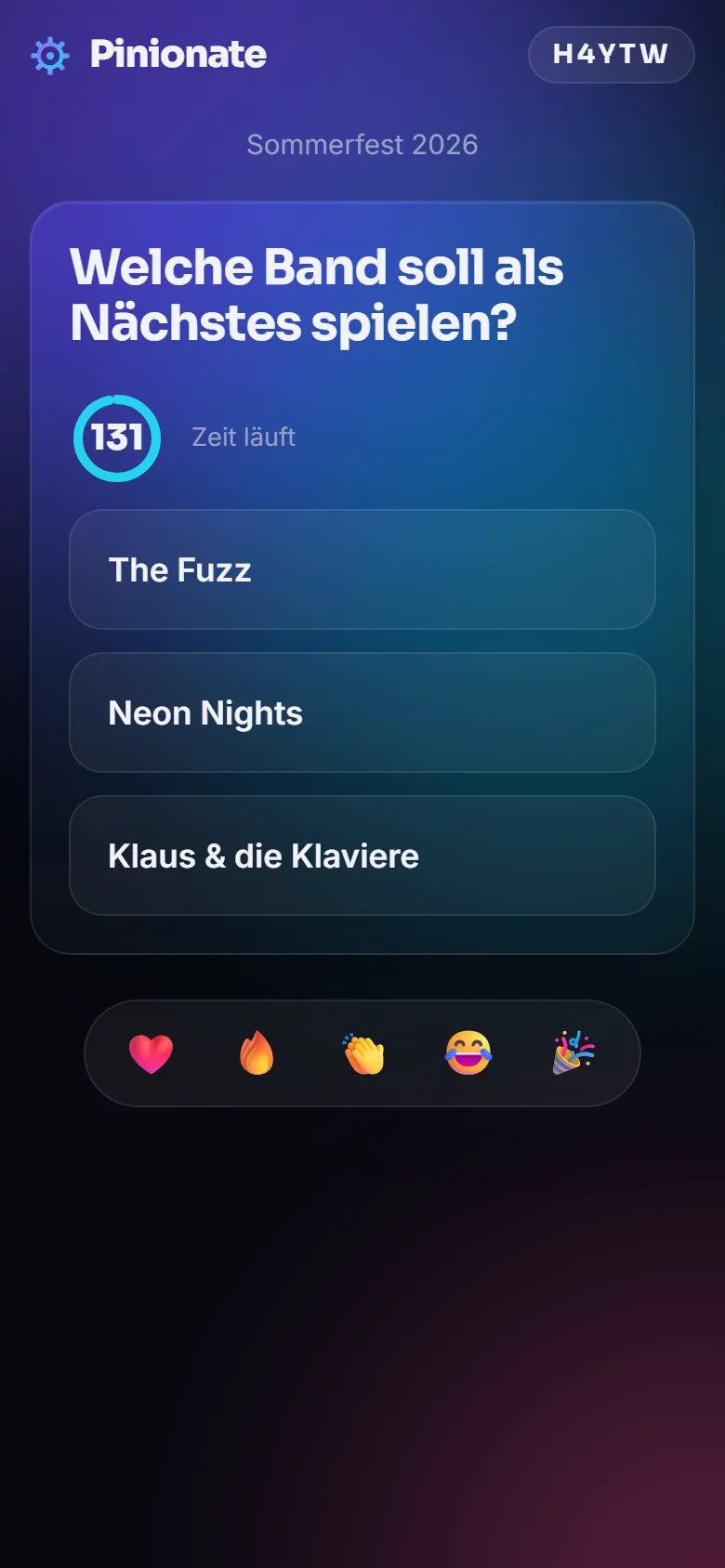
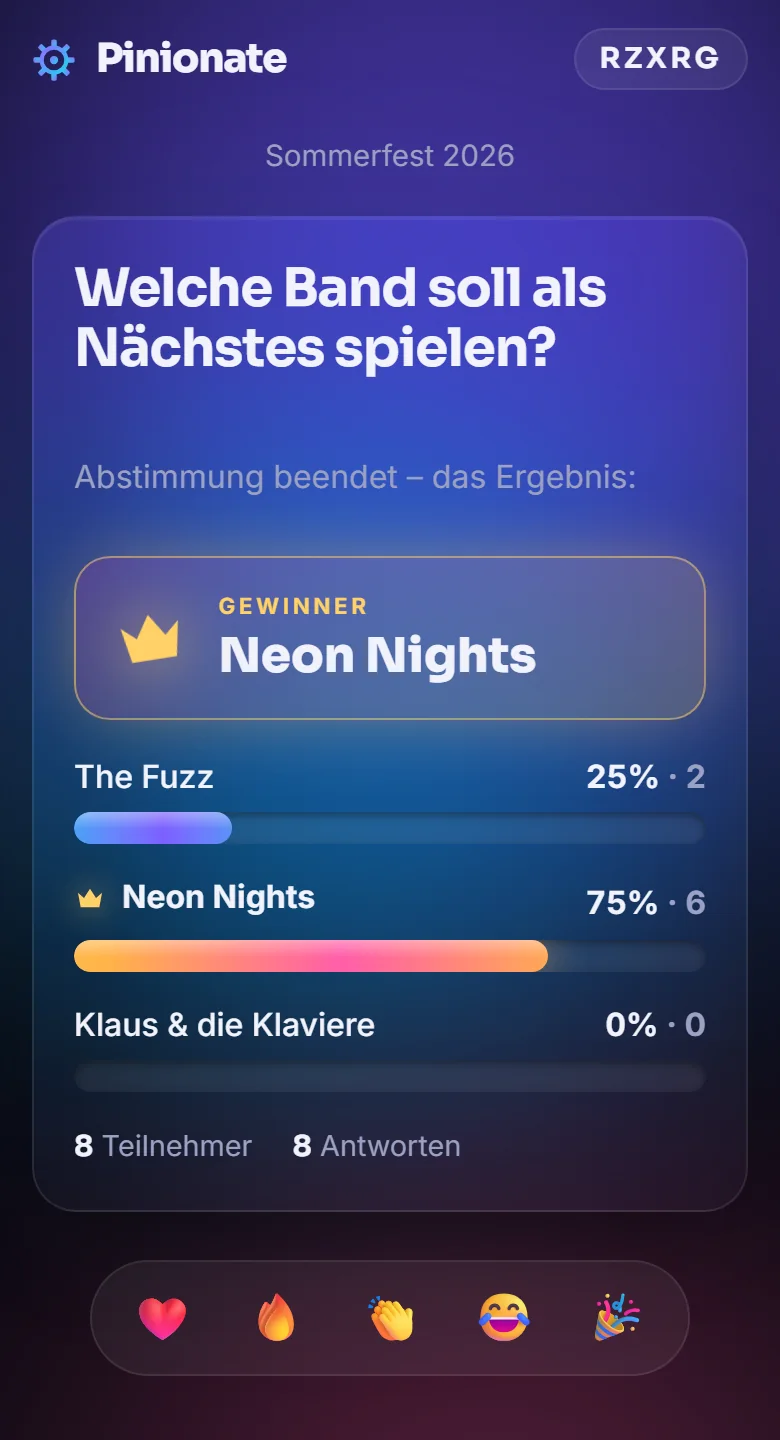
Join with a code or QR code – without an app and without an account.The question on the phone with a running timer and reactions.After the question ends, the audience sees the result on their phone.
Join with a code or QR
Every session has a five-character code. Participants enter it on the start page, or open the link or scan the QR code. Until the next question, they see the waiting message “Starting soon”, and after that each question appears automatically.
In the “Stream” tab, show the QR code on the screen or in the stream.
Participants scan it with their phone camera.
The question appears as soon as you start it.
Tip: The overlay shows the join address while a question is running.
Result on the phone
After the question ends, participants see the result on their device. In a quiz, they find out whether they were right and how many points they got, plus the leaderboard.
Tip: With “Show result only after ending”, it stays exciting until the end.
Live reactions
Participants send emojis (heart, fire, applause, laughter, party) that float up live in the host area and in the overlay. This is available in all plans.
Control it live
The “Live” tab is your command center during the event.
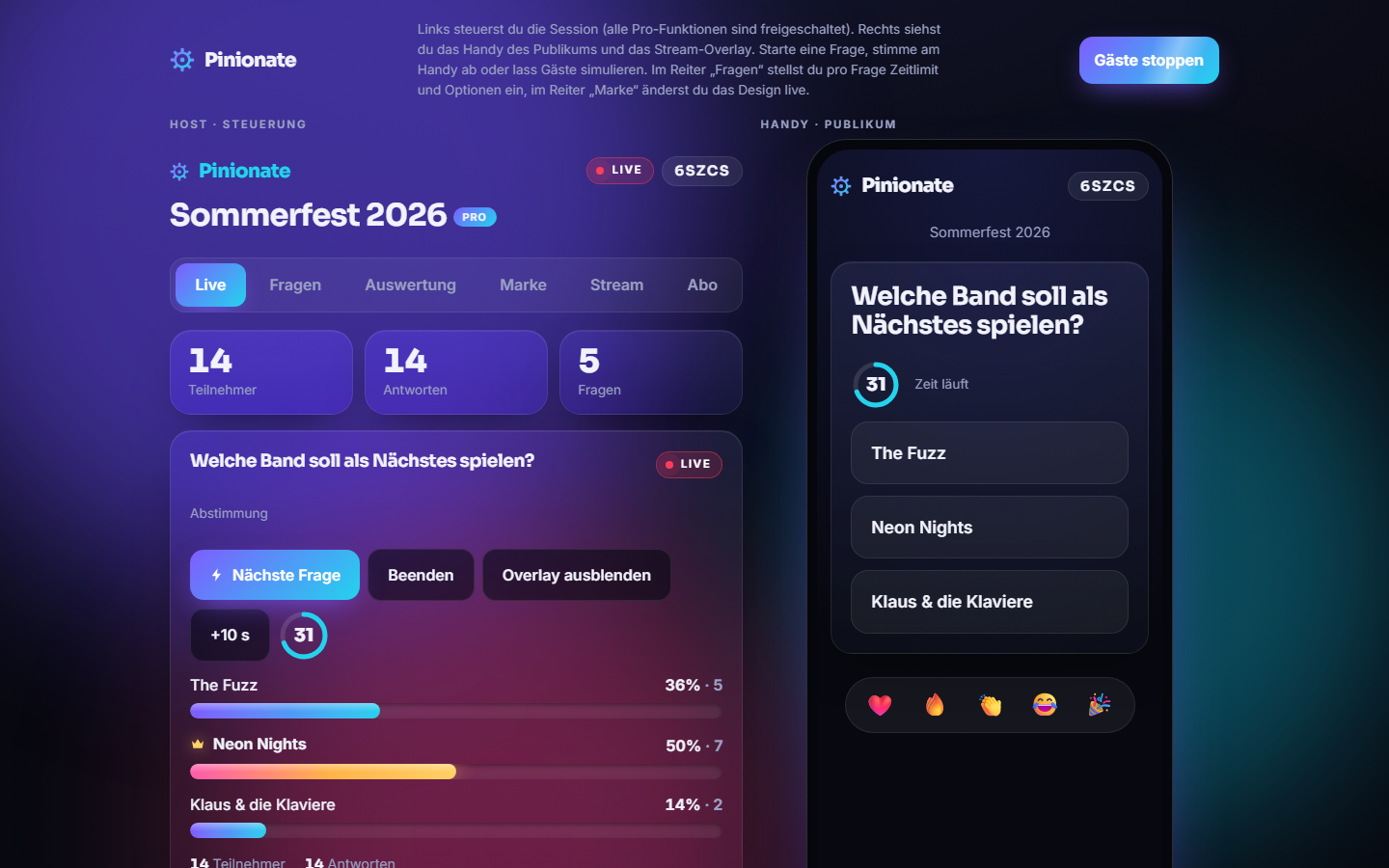
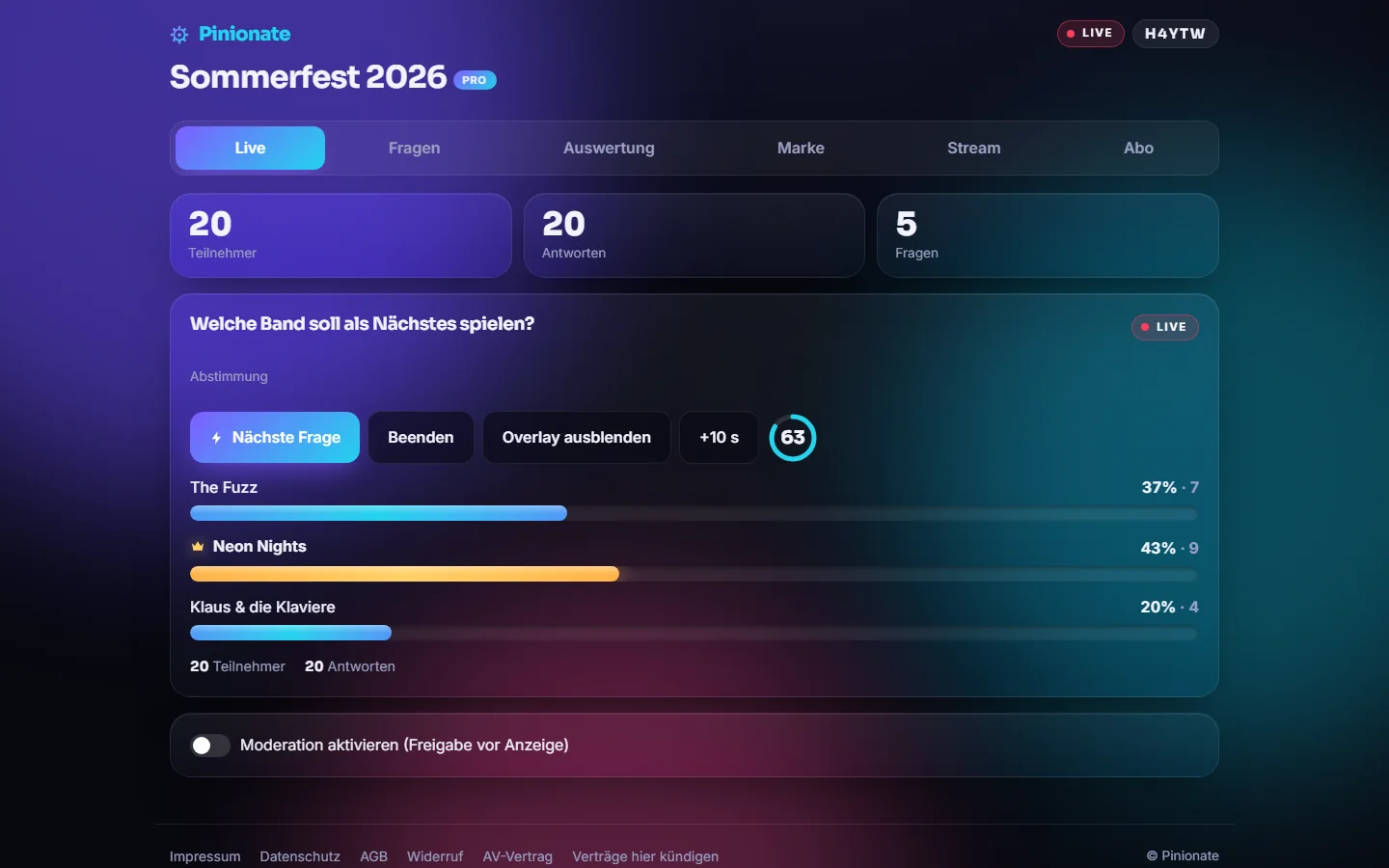
Host, Live tab: start and end questions, extend time, fade the overlay in and out – the bars grow live.
Start and end questions
At the top are tiles for participants, answers and questions. Below that you see the active question with the result in real time. “Next question” starts the next question in the list, “End” closes the running one and shows the result.
Click “Start first question” or “Next question”.
Watch the results live.
Click “End” when enough answers are in.
Tip: Ended questions can be started again in the “Questions” tab with “Run again”.
Extend the time
If a question with a time limit is running, “+10 s” extends the countdown by 10 seconds. A question without a limit can get a 30-second timer afterward with “Start 30 s timer”.
Fade the overlay in and out
In the “Live” tab there is a button that fades the overlay in or out, regardless of whether the question is running.
Stream overlay
The overlay is a separate web page with a transparent background, intended as a browser source in the streaming software.
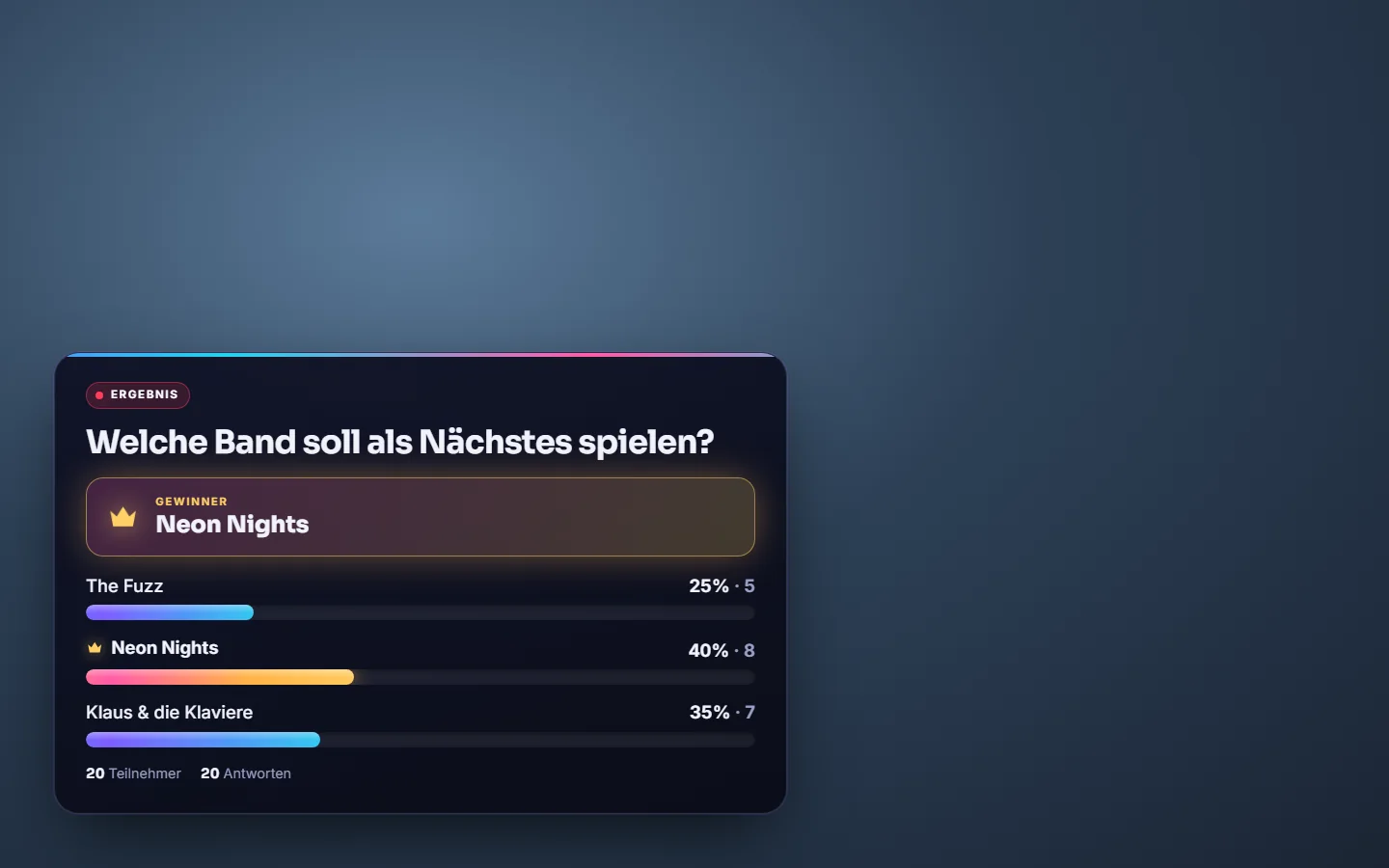
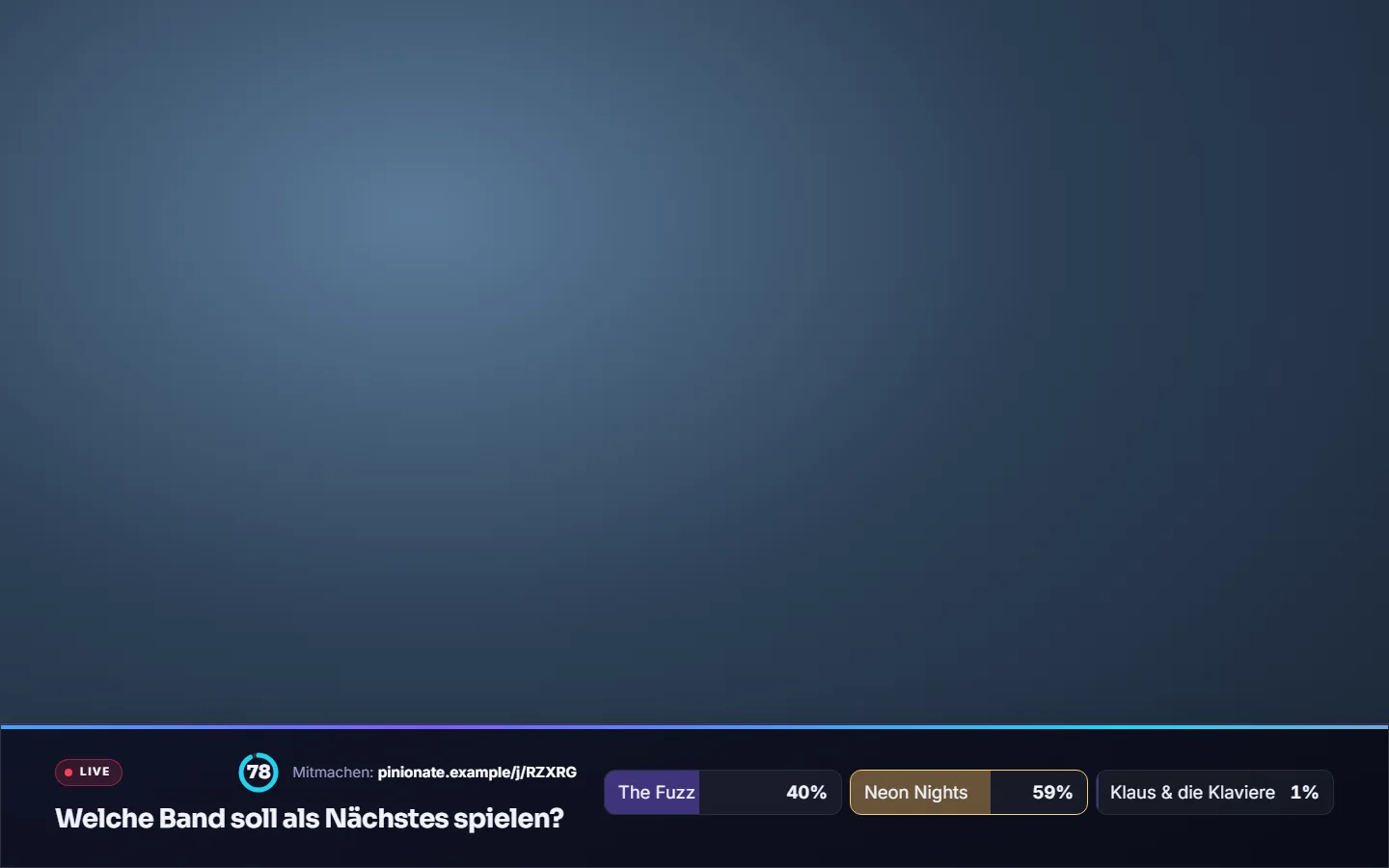
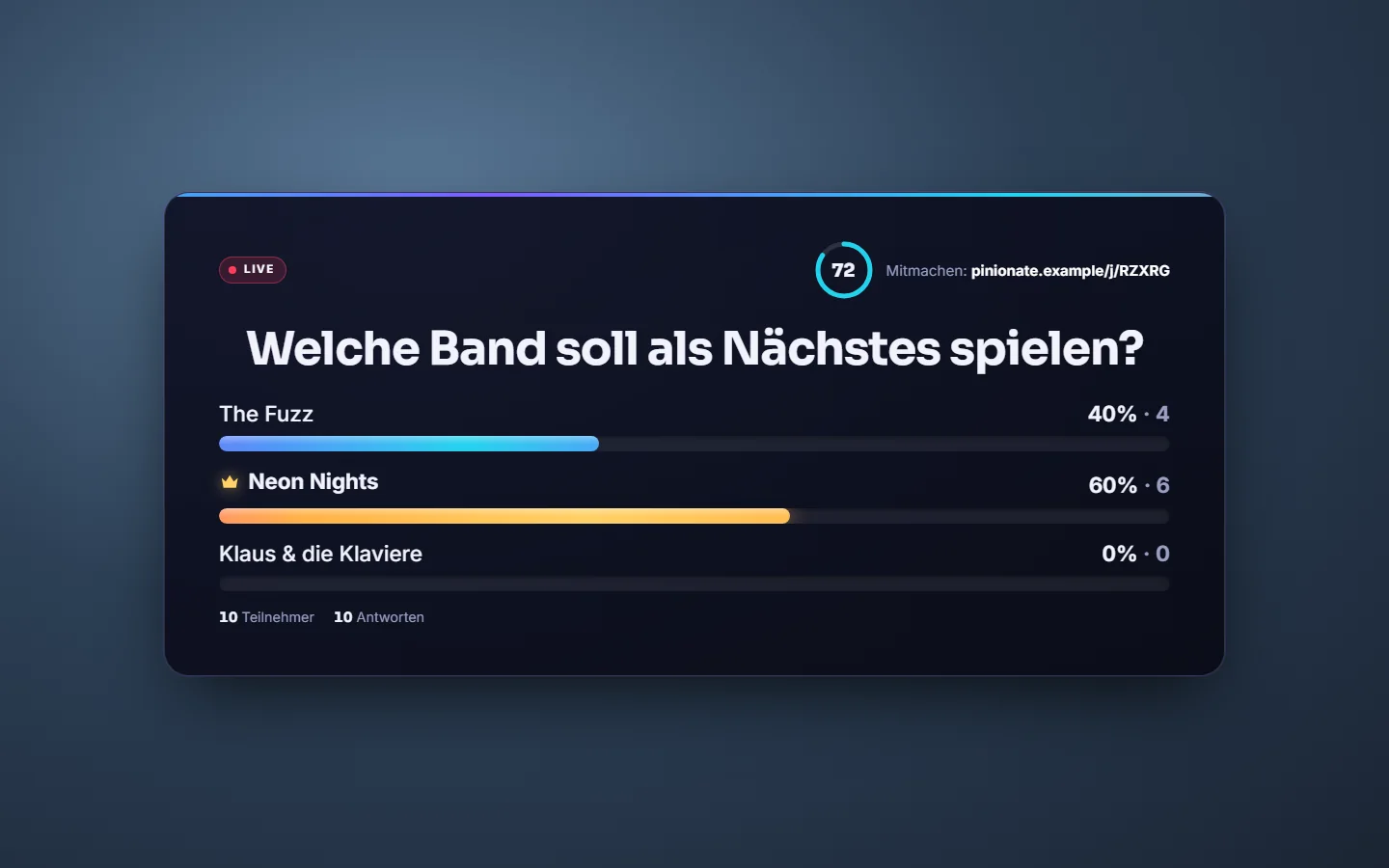
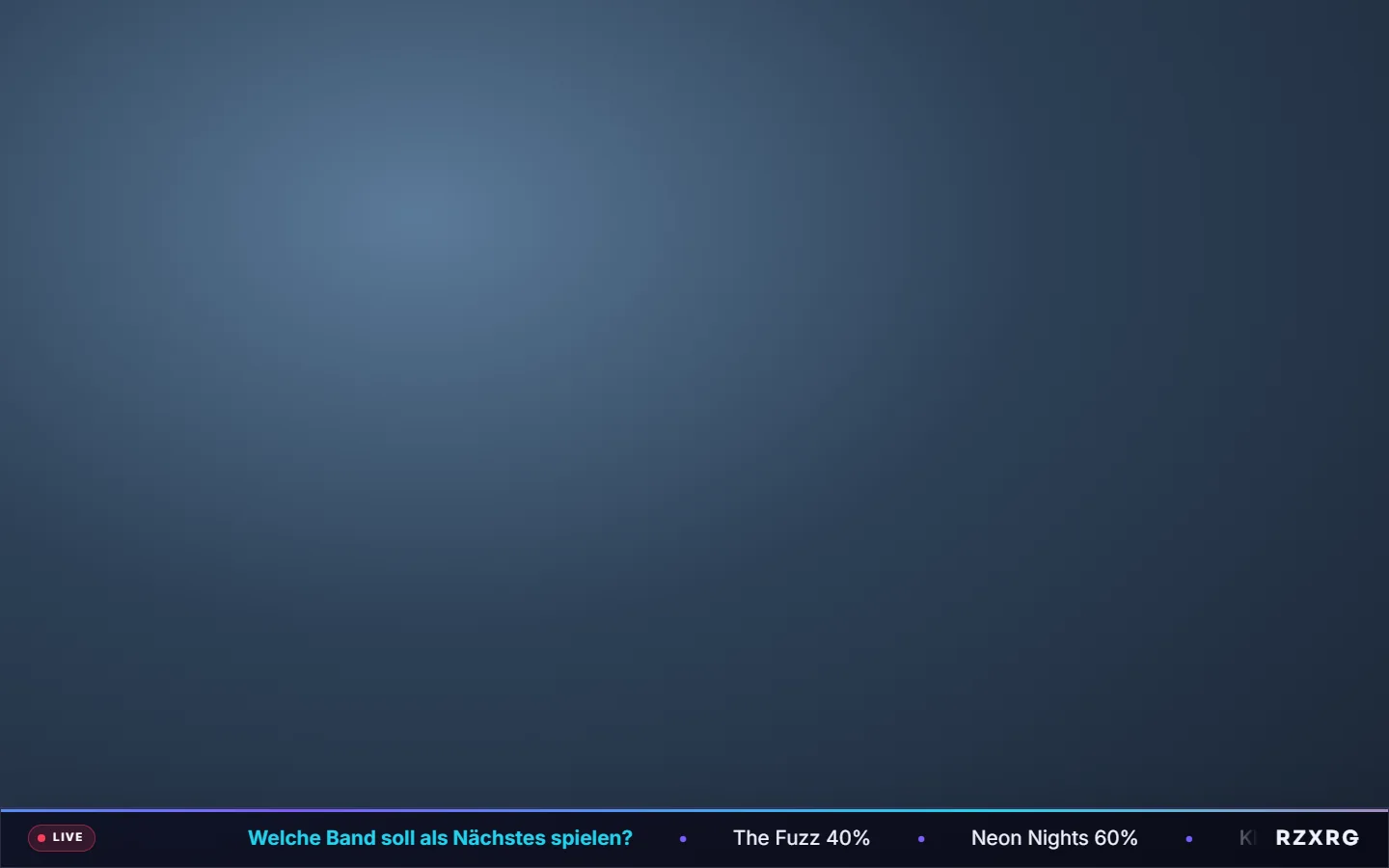
“Card” layout with the result of the vote.“Lower bar” layout.“Full screen” layout.“Ticker” layout.
Add it as a browser source
The address has the form /overlay/CODE. You enter it in OBS, vMix or the ATEM streaming software as a browser source at 1920×1080. It shows the active question, the result, the countdown and the join address.
In the “Stream” tab, under “Stream overlay”, click “Copy URL”.
In the streaming software, create a browser source at 1920×1080 and paste the URL.
With “Preview” you check it in advance in the browser.
Tip: Adding ?theme=light to the end of the address gives you a light display.
Four layouts
The Card is available in all plans. With Pro, Lower bar, Full screen and Ticker are added. The Ticker scrolls the question and answers across the screen.
In the “Stream” tab, under “Overlay layout”, click a layout.
Alternatively, set it with the address suffix ?layout=lower, ?layout=full or ?layout=ticker.
Tip: In the free version, “powered by Pinionate” appears below the overlay. With Pro, it is removed.
Remote control, Stream Deck and Companion (Pro)
If you're not sitting at the computer, you control questions and overlay differently: from your phone or with buttons on the Stream Deck.
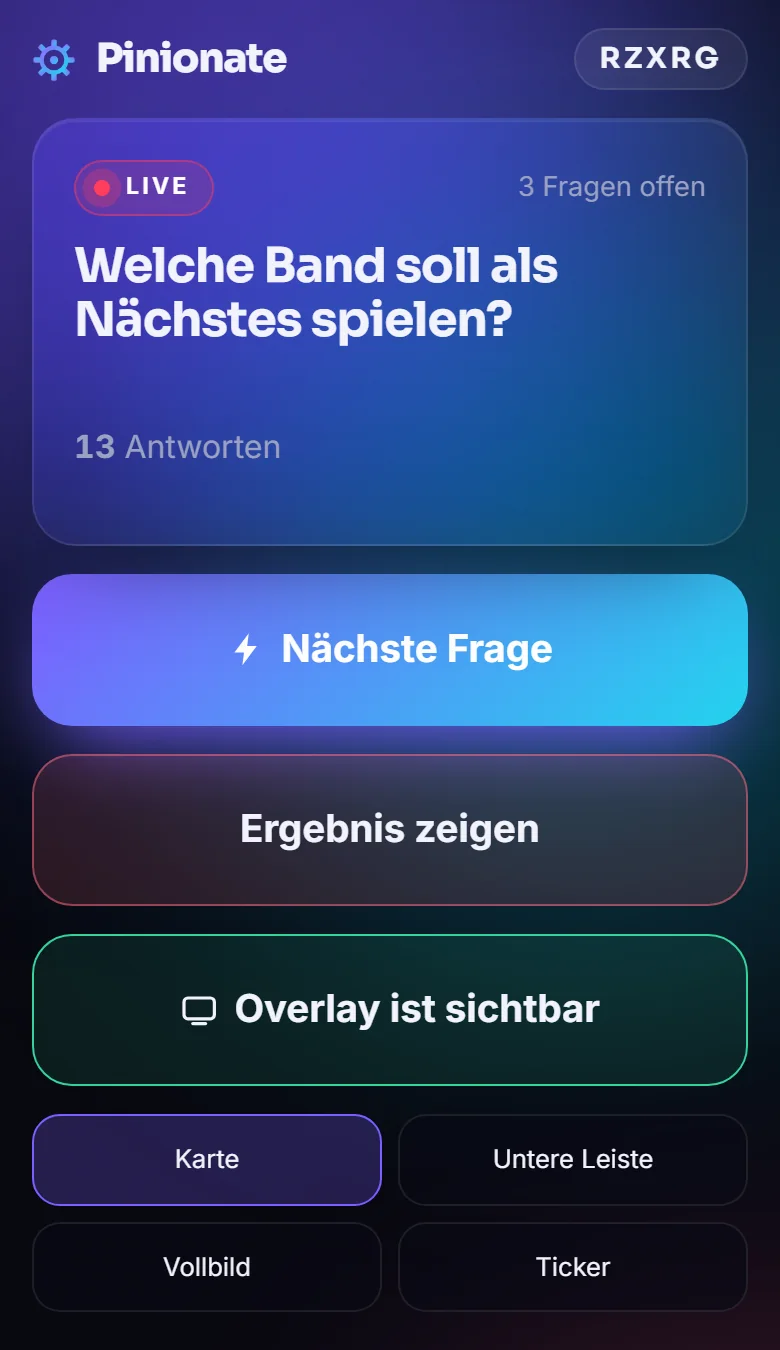
The remote control for your phone.Stream tab: overlay address, layouts and the actions for Stream Deck and Companion.
Remote control for your phone
A dedicated page with big buttons: “Next question”, “Show result”, overlay on and off and layout selection. You also see the current question, the number of answers and how many questions are still open.
In the “Stream” tab, scan the remote control's QR code with the presenter's phone.
Or click “Copy link” and send it to the device.
Tip: The link contains the secret host key. Don't share it.
Stream Deck and Bitfocus Companion
For Companion there are ready-made addresses that you call with GET via “Generic HTTP”. Available actions: next question, end question, show overlay, hide overlay and switch layout.
In the “Stream” tab, expand the “Bitfocus Companion / Stream Deck (HTTP)” section.
Click “Copy” next to the action you want.
In Companion, create a button with “Generic HTTP → GET” and the copied address.
Tip: The host key is part of the address. The display in the tab is hidden by default.
Results and export
Answers are saved. The results are available to view in all plans, and export is a Pro feature. For polls, there is also a per-participant view.
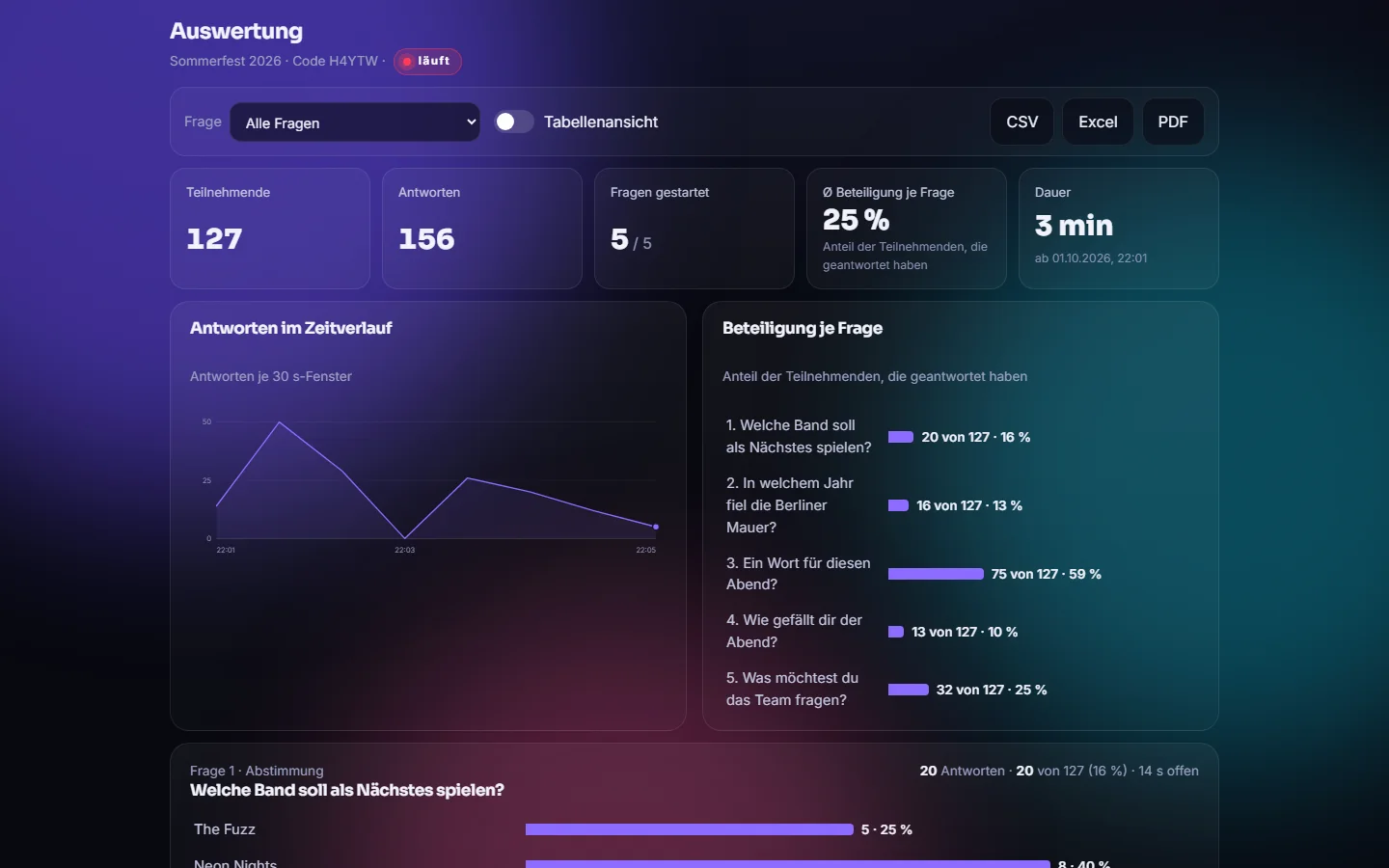
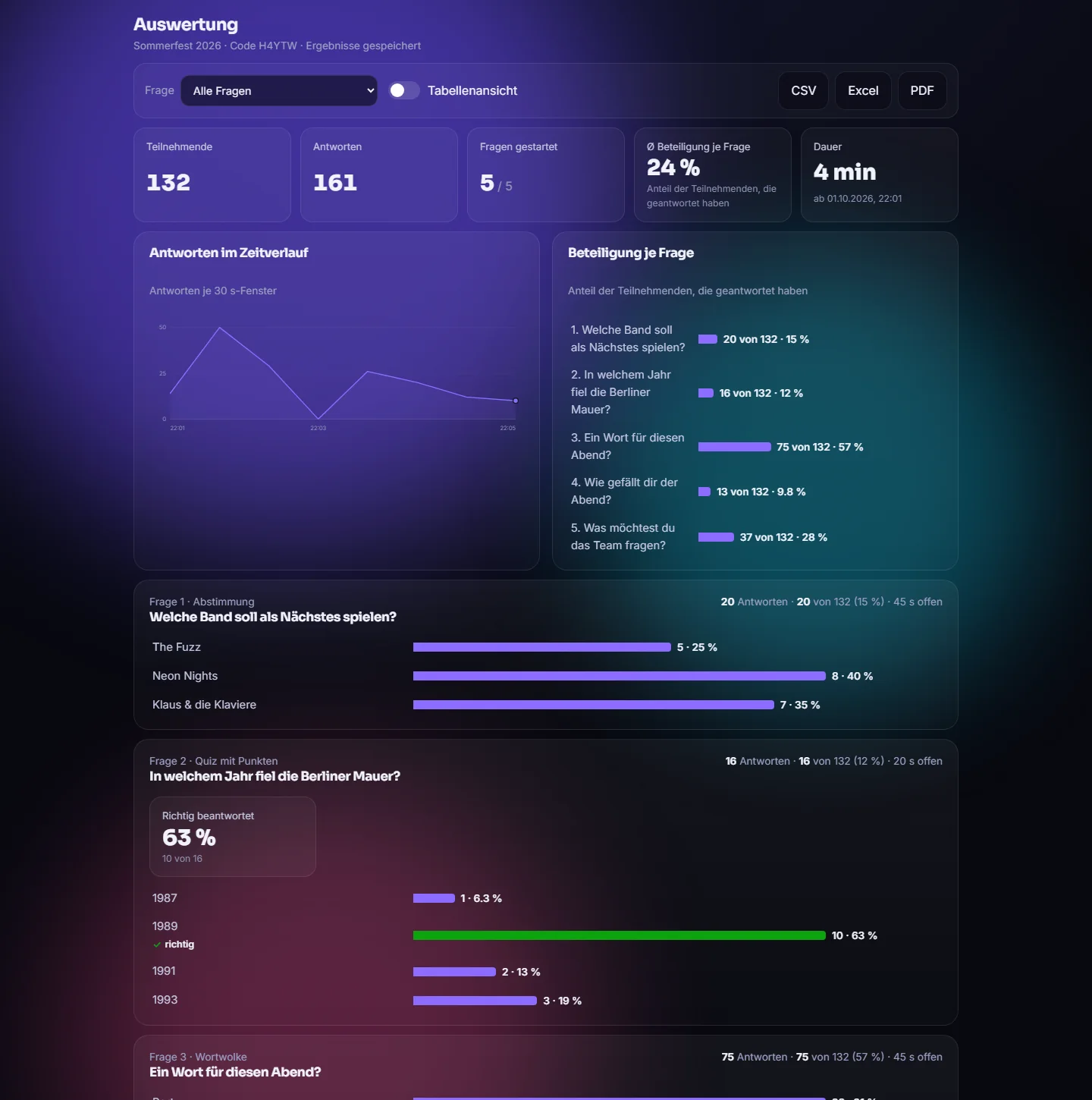
Results: key figures, timeline and participation per question.Charts per question and export as CSV, Excel and PDF.
Key figures and charts
At the top are participants, answers, questions started, average participation per question and duration. In addition there are the answer timeline, participation per question and a block for each question. For ratings there are average and median, for quizzes the rate of correct answers and the average answer time, and the leaderboard at the end.
In the host area, open the “Results” tab.
Filter to one question via “Question”.
Switch from charts to tables with “Table view”.
Tip: “Close event” marks the end and can be undone with “Reopen event”.
Results per participant (polls)
For polls, besides the per-question view there is the “Per participant” view. Participants appear as T001, T002 and so on, marked as complete or partial, with their answers per question. The key figure “Completed n of m” shows how many got through the poll. With the “Complete only” filter, you hide incomplete runs.
In the “Results” tab, choose the “Per participant” view.
If needed, turn on “Complete only”.
Tip: “Per participant” means per browser. Pinionate does not know any names and cannot tell which person is behind T001.
Export as CSV, Excel and PDF (Pro)
You export the results as CSV or Excel file. For polls, the CSV contains one row per participant. The PDF is created via the print view, which you open at /auswertung/CODE and save as a PDF.
In the “Results” tab, click “CSV”, “Excel” or “PDF”.
Alternatively, open the print view in the “Stream” tab under “Data & retention”.
Tip: You can delete the results of a single question with “Reset results of this question” (after confirming), for example after a test run. In polls, use “Start over” in the “Poll” tab instead.
Brand: colors, logo, font (Pro)
The “Brand” tab gives the participant page and overlay the look of your client or your event.
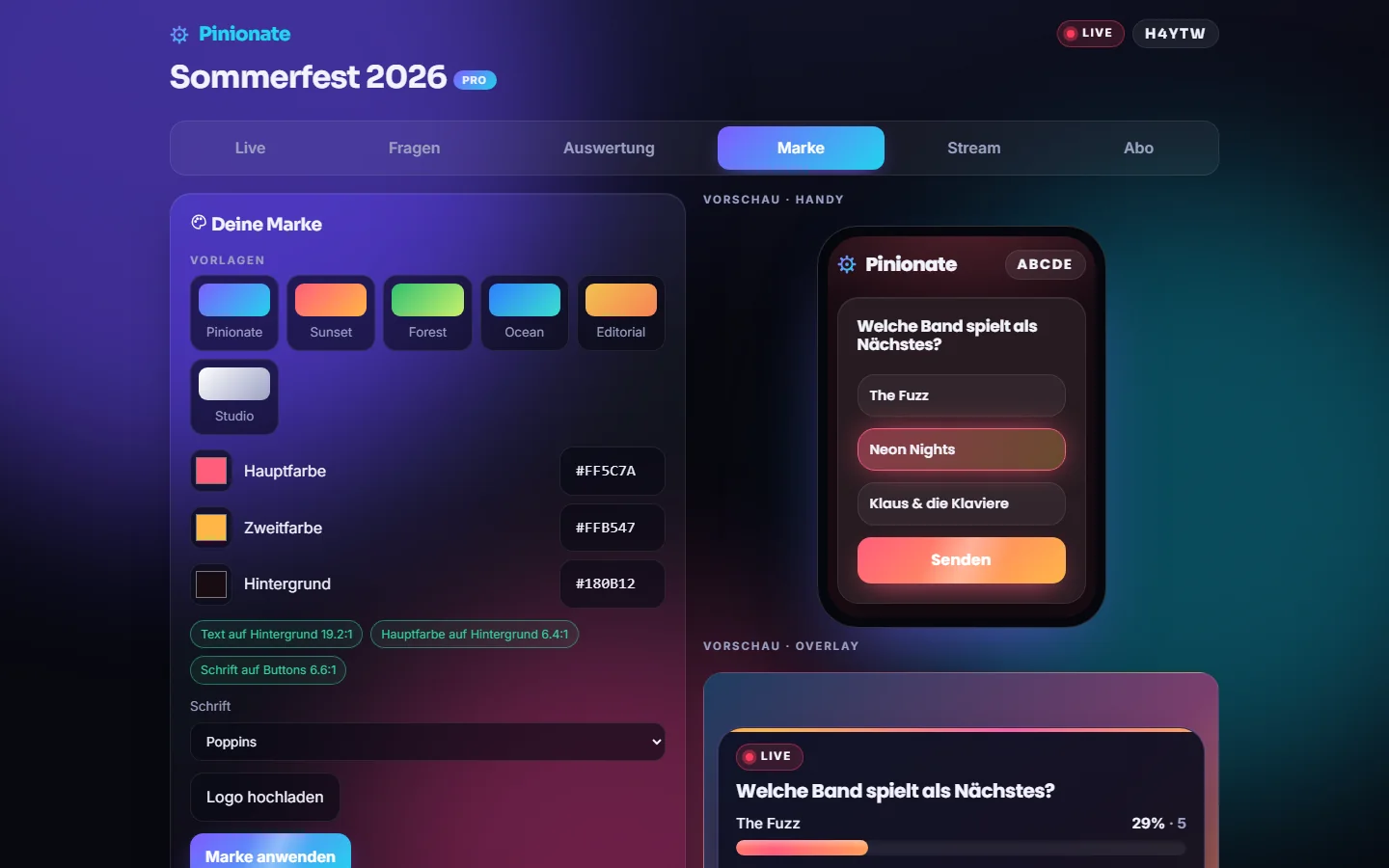
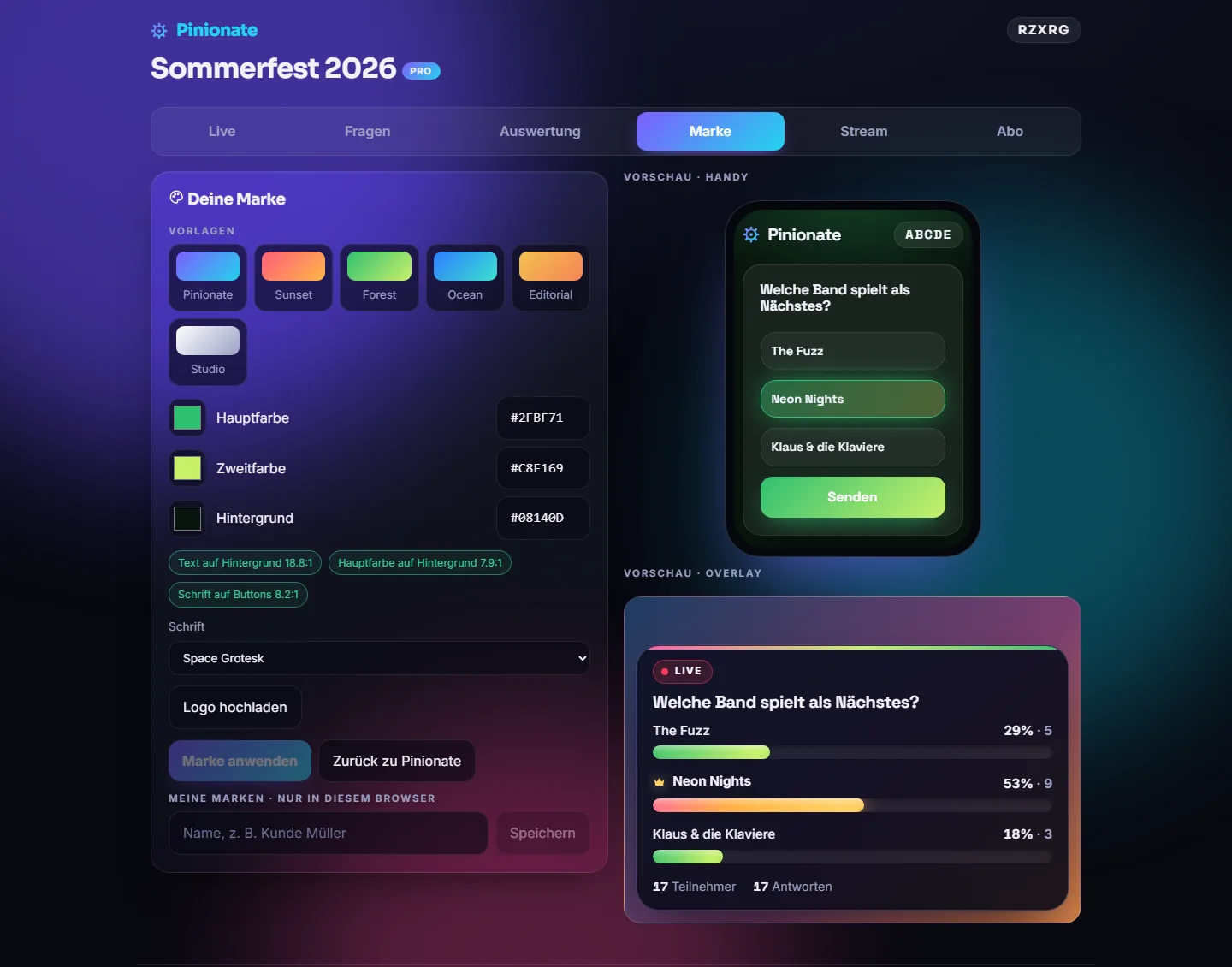
Brand editor with colors, contrast check and preview for phone and overlay.The brand applies to phone and overlay.
Brand editor
You choose a primary, secondary and background color and a font, and upload a logo. “Colors from logo” picks up colors from the logo. A contrast check shows whether text, primary color and buttons are easy to read. The preview shows phone and overlay side by side.
Choose a template or set colors and font yourself.
Optionally upload a logo (PNG, JPEG or WebP).
Click “Apply brand”. The brand then applies to phone and overlay.
Tip: With “Back to Pinionate” you restore the default look.
Saved brands
Brands can be saved under a name, for example per client, and loaded again later. With an account they are stored in the account and available on every device, without an account only in this browser.
Host account
Optionally, you sign in with an email link without a password. Sessions, saved brands and the subscription are then tied to the account and apply on every device. Without an account, everything keeps working, and access to the session is stored in the browser.
Plans
Pinionate comes in a free version and a Pro version. Pro can be used as a subscription or as an Event Pass for a single event.
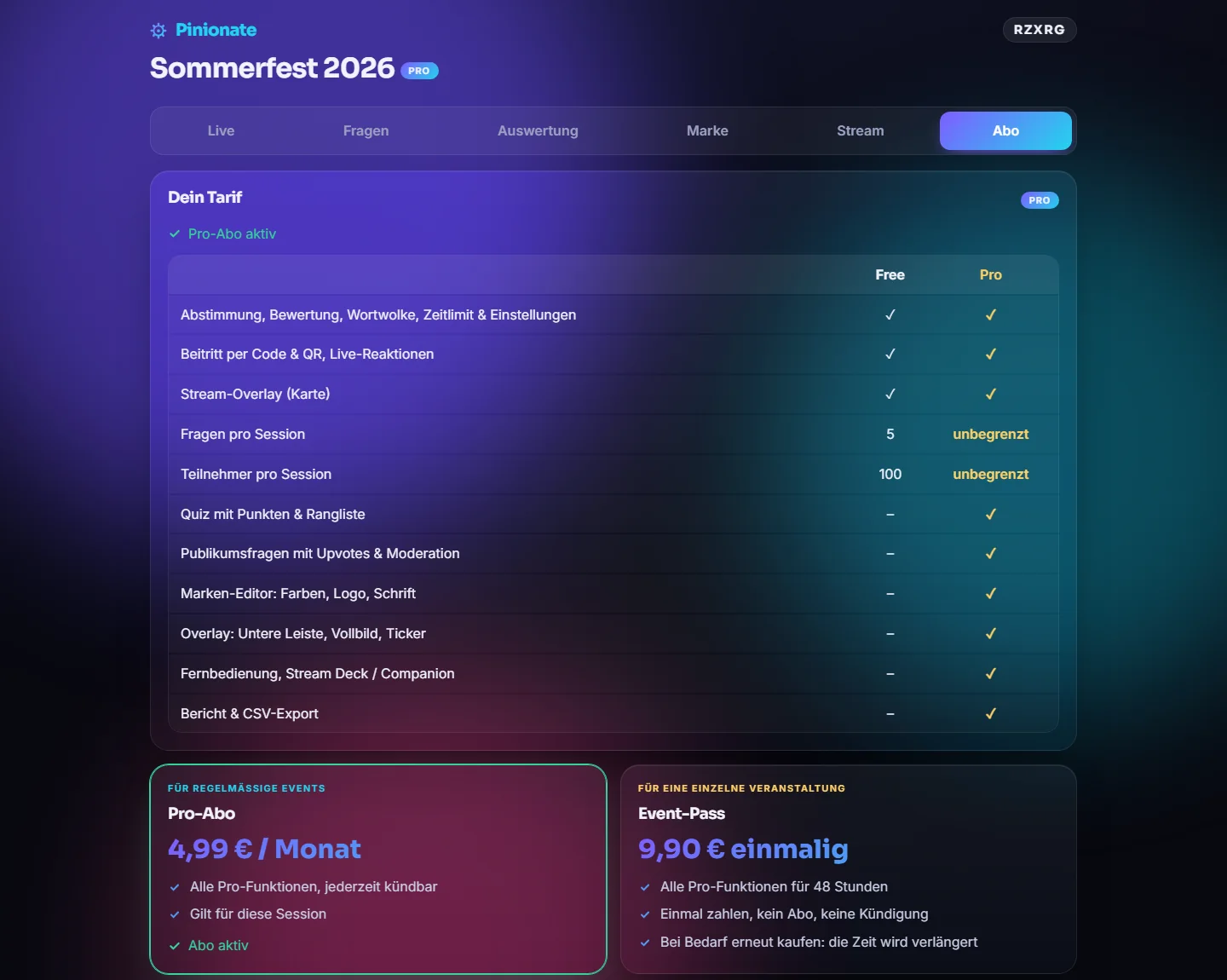
Subscription tab: the plans at a glance.
Free
Costs €0. Includes vote, rating and word cloud, joining by code and QR, live reactions, the overlay as a card, time limit and the settings per question, and the saved results to view. You can prepare polls in Free but not start them. Limits: up to 5 questions and 100 participants per session.
Pro subscription
Planned price: €4.99 per month, cancelable at any time. Includes unlimited questions and participants, quiz, audience questions with moderation, the free text question type, starting polls, the brand editor, the overlay layouts Lower bar, Full screen and Ticker, remote control, Stream Deck and Companion, and the export. Payment is via PayPal.
Event Pass
Planned price: €9.90 one-time. Unlocks all Pro features for a session for 48 hours, including starting a poll, with no subscription and no cancellation. Buying again extends the time. Payment is via PayPal.
Tip: Prices and payment are not live yet. Only what is on the Pinionate page at launch is binding.
Import & export
Import
Questions as a text list: one question per line, fields separated by semicolons, answers separated by a vertical bar (for example choice;Welche Band?;Band A|Band B)
Load question templates that you saved earlier in the browser
Participants' answers in a poll, including free text up to 500 characters
Logo for the brand as PNG, JPEG or WebP
Export
Results as a CSV file (Pro), with one row per participant for polls
Results as an Excel file (Pro)
Results as a PDF via the print view (Pro)
Requirements
For the host, a current browser on a computer; the app is a website and is not installed.
For participants, a phone or computer with internet and a browser, without an app and without an account.
For the overlay, streaming software with a browser source, for example OBS, vMix or the ATEM software.
For Stream Deck, a Bitfocus Companion installation with the Generic HTTP module and Pro.
For payment, a PayPal account.
FAQ
Do my participants have to install an app or sign in?
No. Pinionate is a website. Participants enter the five-character code or scan the QR code and answer in the browser.
Can I try Pinionate yet?
Not yet. Pinionate is in development and not yet publicly available. There is neither a download nor a link.
How much does Pinionate cost?
The plan is Free at €0, Pro as a subscription for €4.99 per month and the Event Pass as a one-time purchase for €9.90. This is the current planning status and only applies once Pinionate launches.
What is the difference between the Pro subscription and the Event Pass?
The subscription unlocks Pro permanently and can be canceled at any time. The Event Pass unlocks Pro for a single session for 48 hours. No subscription is created, so there is nothing for you to cancel.
How many participants and questions are possible in the free version?
Up to 5 questions and 100 participants per session. With Pro, there is no such limit.
Does the overlay work with my streaming software?
The overlay is a web page with a transparent background and is meant for browser sources. It is intended for OBS, vMix and the ATEM streaming software. Whichever software you use, test it once before using it live.
Can I operate Pinionate with the Stream Deck?
Yes, with Pro. In the “Stream” tab there are ready-made addresses for Bitfocus Companion. With them you start questions, end them, fade the overlay in and out and switch the layout.
Where is the data stored and for how long?
The data is stored in a Supabase database, intended to be in the EU region. Without an account, sessions are deleted automatically after 30 days without activity. In the “Stream” tab you can choose your own retention period or delete the session at any time. For organizers there is a data processing agreement under Art. 28 GDPR, which you confirm when creating the session.
Do participants see what others have answered?
In a live session, that depends on the question. With “Show result only after ending”, results stay hidden until the question is ended. You can approve entries for word cloud and audience questions with moderation before they are displayed. In a poll session, no participant sees the answers of others, not even through the database interface. Participants only get results once the poll has ended and you have turned on “Show participants the results after the end”, and then with pseudonymized participant IDs.
Can I also send out a poll without live moderation?
Yes. When creating the session, you choose “Poll to send out” instead of “Live session”. You prepare the questions, start the poll and share the link, code or QR. Participants answer all the questions one after another at their own pace, and you don't have to control anything live. Time limits, quizzes and audience questions are not available in polls.
Can I analyze who answered what?
Partly. In the “Results” tab there is the “Per participant” view with T001, T002 and so on, with the answers per question, and the CSV contains one row per participant. This is pseudonymous and applies per browser: Pinionate does not know any names, and anyone who answers with several browsers appears several times.
Do I need Pro for polls?
Not for preparing them, that works in Free too. To start a poll you need Pro or an Event Pass. The free text question type and the CSV export are Pro features as well.
How long can a free text answer be?
Up to 500 characters. One answer counts per person and question, and a new one replaces the old one. You see up to 100 answers as text cards, the rest is in the CSV file.
Versions
v0.1.0
Development status: not yet public, no release.
Good to know
Pinionate is in development and not yet publicly available. There is no launch date, no download and no link to the app yet.
Prices and payment via PayPal are not live yet. The prices given are the current planning status.
Legal texts (legal notice, privacy policy, terms and conditions, right of withdrawal, data processing agreement) will be finalized and reviewed before launch.
Question templates are currently stored in the browser and not in the account. Team access with several people per account does not exist yet.
In live sessions, moderation and “Result only after ending” only hide content within the app. The raw data is not additionally shielded there on a technical level. Polls are different: there, no participant sees the answers of others.
Polls do not have spam protection or a rate limit yet. Anyone who knows the link can answer several times with multiple browsers.
“Per participant” means per browser, not per person known by name. The participant IDs are pseudonymous.
Answers in polls, including free text, are not moderated.
Polls are only available in German so far.
Event Pass refunds are not integrated yet.
The app is only available in German so far; multilingual support has not been implemented.